Warning: Im getting more messages from builders of this robot saying that either the required software is not available or it doesnt work under Windows 11. I may eventually remove this Thing since I dont want people to invest time building a robot with no software support. Be warned, this robot is a lot of work and it may not be possible to operate it as newer versions of Inkscape, Grbl, Ugs, and Arduino may present incompatibilities. If you think you have the software abilities to resolve conflicts, enjoy this project otherwise I suggest building a newer design where someone has updated the software. This design still presents useful documentation for the mechanical build of a drawing robot.
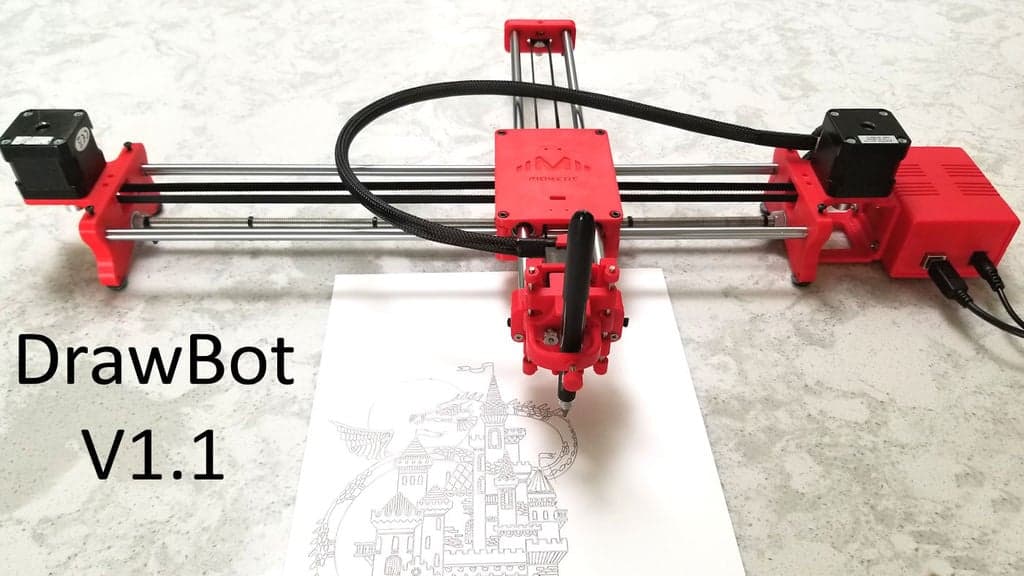
The DrawBot is similar to the commercially available AxiDraw. It is powered by an Arduino Uno controller, uses a Cnc Shield, and Grbl firmware. The approximate cost to build the DrawBot is $100.
Recently some makers of the Drawing Robot have reported a hang up issue with the Drawing Robot Software. I didnt write any of this software. It is all open source or commercially available. I havent seen the hang issue but I also see that some of you have moved to software other than the suggested combination. It is hard for me to troubleshoot all combinations of software. This Thing is dependent on Grbl, Inkscape, Java, and Universal G-Code Sender. I have seen cases where changes in the version of Inkscape conflicted with either Java or Grbl. That is why I have suggested a known working set of software. I posted this thing to give people a cool project but it is not a product. If you decide to try other software, you will have to do your own troubleshooting. I do acknowledge that even with the suggested software that you could run into a problem such as a hang on long plots (2 hours?). Ive tested on plots as long as 90 minutes without issue but it is possible that a long plot could hang in a way I havent seen. If someone finds the cause and fixes it, I will be grateful and will add the fix with a credit to you.
New: A vendor in India has decided to sell this drawing robot. I have no relationship with them and yes they did take my work plus the original designer of this robot. The good news is that they have done a nice video on how to install software that should work with this robot. Please try it and let me know if it works. The software addresses ways to do filled drawings and single line lettering. Heres the link: https://www.youtube.com/watch?v=I4omT2L9aI8amp;t=27s
If you decide to build this robot, make sure you check the following things before reporting that it doesnt work. 1. Make sure you have Python 3.7.X or 3.8.X installed on your computer. Python 3.9.X does not work. Its maddening to me that different versions of Python dont work with this solution. Python is needed in order to use the Universal G-Code Sender and the Mi Grbl Extension in Inkscape. Python errors usually mean that you either dont have Python or you have version 2.X instead of 3.X. If you still have a py error, copy the supplied to servo.py file to the extension directory. 2. If your robot draws at a 45 degree angle, read this whole description before reporting this problem. Please read this description. If you still have problems, refer to these instructions - 3. Make sure you have set the Grbl parameters in the Universal G Code Sender and that you have zeroed the X and Y axis. 4. Make sure you have the jumpers under the stepper drivers installed. 5. Make sure you have adjusted the stepper drive current for your brand of driver 6. If you decide to change the version of Grbl or Inkscape you are using, I cant troubleshoot your New setup. Newer versions of Grbl dont have the servo code for the Z axis and newer versions Inkscape may not work with the Mi Extension.
You must read this description and the documentation to get the robot to work correctly. It isnt hard but you cant wing it. Have fun!
Heres what is new for DrawBot Version 1.1 Ive improved many parts but all new parts are compatible with all of the old robot parts. Heres what has changed:
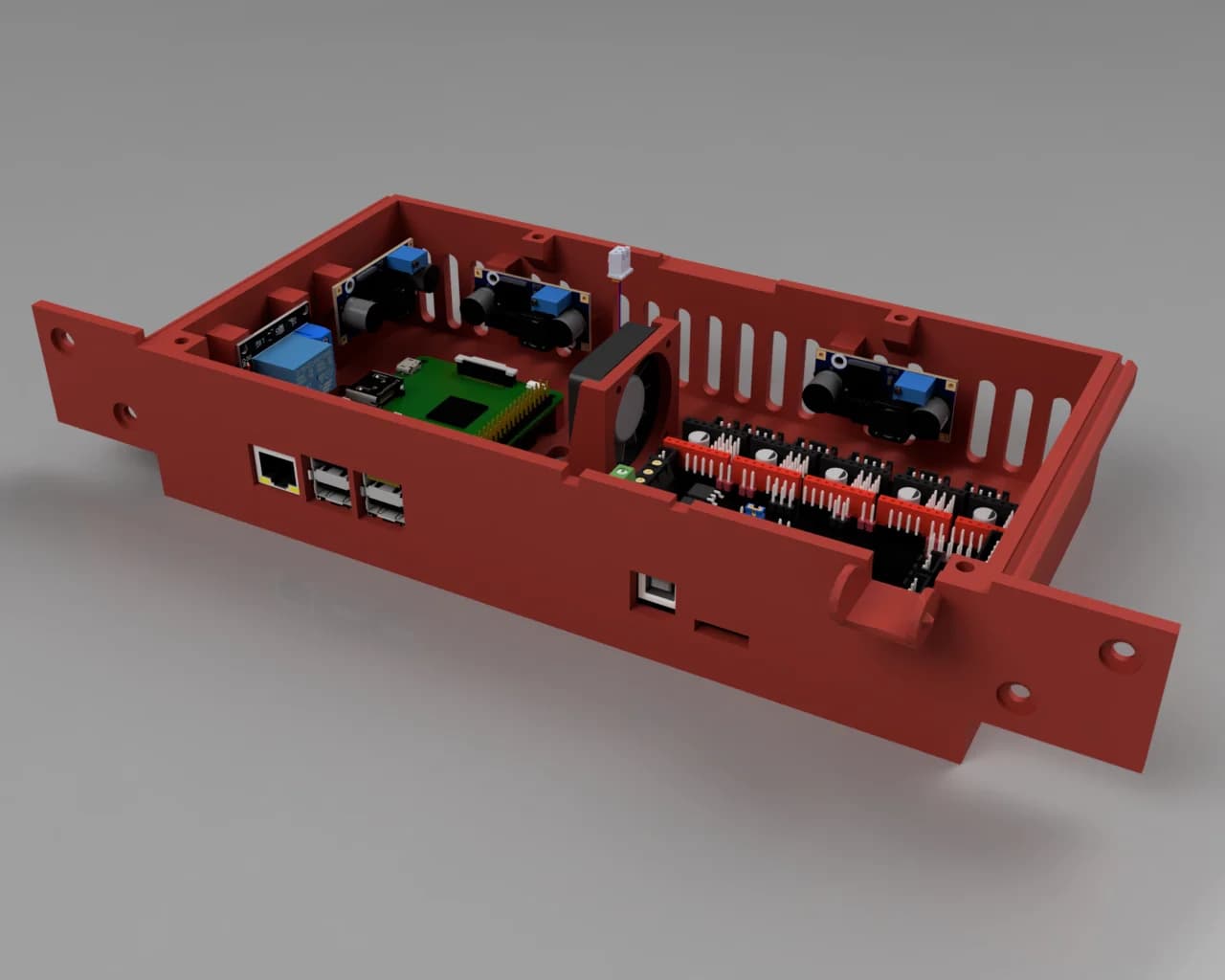
1. Theres a new Pen Holder which is sturdier but still maintains the ability to hold a pen at an angle. The new pen holder works with the current robot. 2. Stronger version of the pen sliding mechanism. It is compatible with the original pen holder and robot. The extra strength will hold the pen more firmly and allow more accurate movement of the pen. 3. User Gspt pointed out that Arduino Vin cant handle more than 1A. There is a new slide showing how to connect power from the Arduino barrel connector to the Cnc Shield. 4. Theres a new bracket designed to attach the Arduino enclosure to the right hand of the robot. See the new front page photo! The bracket uses existing holes so no other parts need to be modified. 5. I have designed a cable management system that uses a 500 mm x 9mm large wire tie to support the Z axis servo wiring. 6. I just found out that the DrawBot works with some of the AxiDraw software. I will document what works and how to use it. This is really cool and will make the DrawBot even more useful. All new parts will have a newer suffix to the old part name (V4 becomes V5, etc..). You may use the new design or you are welcome to print the older versions.
Documentation can be found in the Files section. Thanks to Jonathan K for creating this documentation.
After assembly use the Install and Use document which explains how to install Inkscape, the Mi Grbl extension, and the Universal G-Code Sender. It also guides you through three example projects and can be found in the Files section of this Thing.
If you run into a problem building this Drawing Robot, please carefully read this description, the provided documentation, and the comments. More than likely your question or problem has been addressed already.
This drawing robot allows you to draw things in Inkscape and then plot them out. The drawing robot receives G Code commands that are created inside an Inkscape extension called Mi. Below are the links to the software used. Theres a document in the Files section explaining how to install and use the software.
Print all the parts. Assemble them using the assembly guide and then use the installation and use guide to start using your Draw Robot.
Troubleshooting: Please check the following if you are having problems:
1. Be sure to install 3 jumpers on the Cnc Shield for each stepper driver. Theres a photo showing the jumpers. 2. You must use the Grbl version pointed to in the link below. Replace the config.h file with the one provided which has the correct features enabled before you compile and download from the Arduino Ide. If You Fail To Perform This Step, the robot will draw at a 45 degree angle. The library config.h file you should replace is in the Pc directory.Documents/Arduino/libraries/grbl-servo-master/config.h. I dont know which directory for Apple us
Источник: https://www.thingiverse.com/thing:2349232
Автор: henryarnold
Лицензия: Creative Commons - Attribution
Другие модели автора
Все моделиСкачать Рисующий робот — Arduino Uno + Cnc щит + Grbl — 3D-модель для печати на 3D-принтере
Скачать Рисующий робот — Arduino Uno + Cnc щит + Grbl — 3D-модель для печати на 3D-принтере. Файл загружен автором Katalog3D на маркетплейс Каталог3Д и доступен для скачивания в формате STL или 3MF.
Лицензия. Перед использованием ознакомьтесь с условиями лицензии в карточке модели. Одни файлы разрешают только личную печать, другие — коммерческое использование. Подробнее — в разделе лицензии.
Смотрите также: другие модели этого автора, похожие файлы по тегам — cnc, arduino, CNC Machine, grbl, drawing, pen holder, arduino robot, Arduino Uno, arduino drawing robot, axidraw, CNC Robot, CNC Plotter, drawbot, drawing arduino robot, drawing machine, drawing robot, GRBL Arduino, GRBL Shield, grblshield, pen plotter.