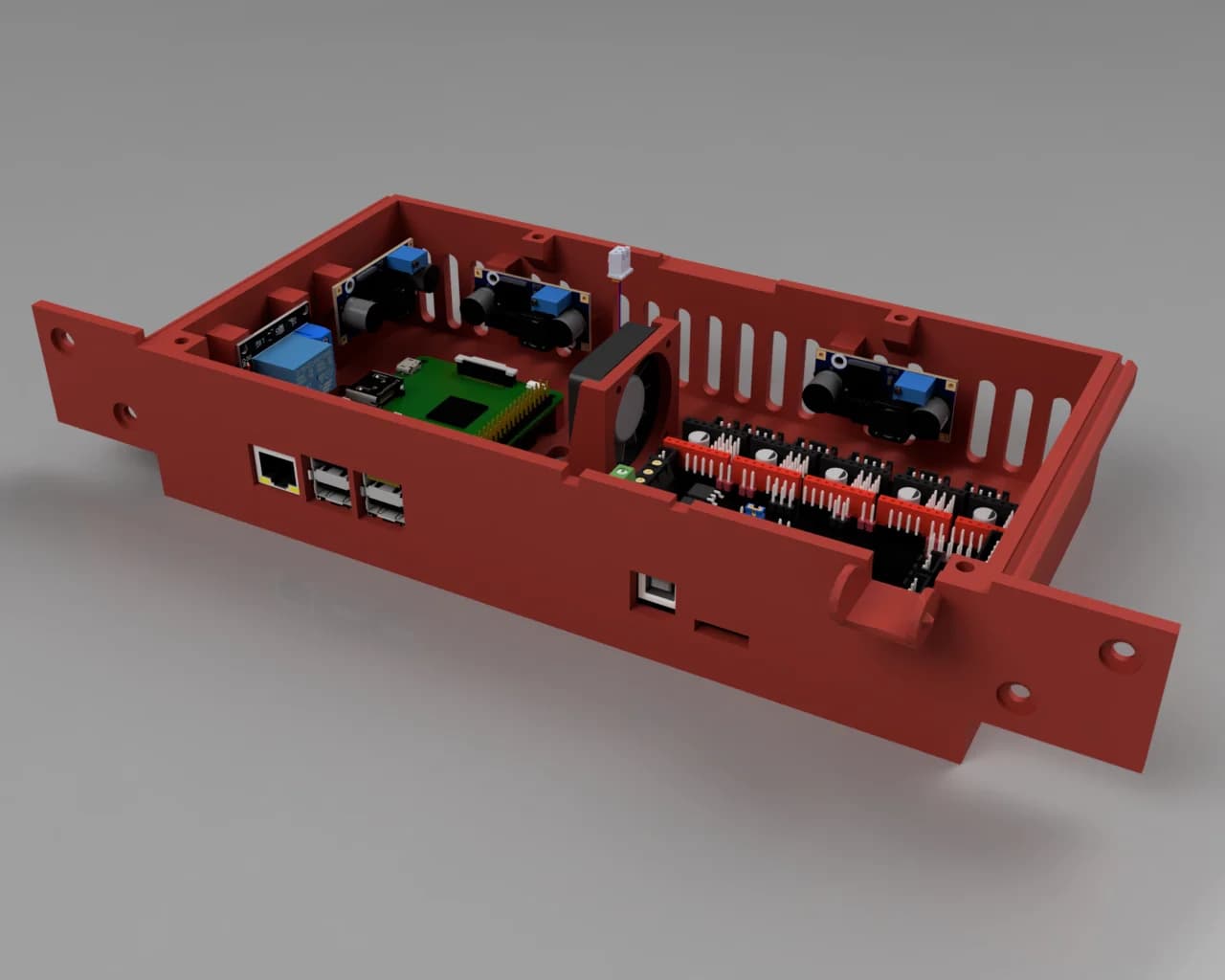
Please note: This is an adapted version of my [Raspberry Pi 3 case](https://www.thingiverse.com/thing:3719217) that I modified to fit the Raspberry Pi 4. I do not yet own the Raspberry Pi 4 myself. However Thingiverse user [Haz1](https://www.thingiverse.com/Haz1/about) was kind enough to patiently print several iterations of the case and send me pictures to check the fit. Thank you Sebastian:-).
Since I did not yet print this thing the pictures only consist of a few renders. If you want to see how it will look printed please have a look at the [Raspberry Pi 3 version](https://www.thingiverse.com/thing:3719217). Its the identical case but with a few differences due to the different board layout of the Raspberry Pi 3.
If you want to use the Customizer script you have to download the Customizer.zip file separately from the Thing Files tab since it is not included in the zip file form the Download all Files button.
There already is a plethora of raspberry pi cases on Thingiverse and the last thing we need is yet another one. well - I created one anyway. because I wanted to and I had a lot of fun doing it:-).
I tried to achieve the following key features: Easy to print without support (no steep overhangs or long bridges and stuff). Top and bottom layer printable on print surface (so I could make good use of my recently acquired awesome powder-coated/textured print sheet). No screws or glue needed (snap fit). Slim/compact outline. Acceptable ventilation without fan. Good looking (very subjective - I know). I also wanted a stand to put it on.
I tested the Raspberry Pi 3 version with 0.2mm and 0.1mm layer height. Both worked well so this settings will also work for the Pi 4 version. I would recommend to use Petg for better heat resistance.
If you have any questions, suggestions or requests dont hesitate to let me know.
There are several different designs for top and bottom
Base design without ventilation holes Hexagonally shaped ventilation holes Simple slot shaped ventilation slots Hexagonal mesh covering the whole bottom
Base design without ventilation holes Hexagonally shaped ventilation holes Raspberry logo as ventilation holes Simple slot shaped ventilation slots Hexagonal mesh covering the whole bottom
There are three different stands
Vertical stand Horizontal stand Flat stand
The vertical one also has a version that routs the Rasberry Pi status leds to the front. To achieve this you have to print the file Stand_Vertical_LED_Guide.stl twice using a transparent filament and slide it into the according holes of file Stand_Vertical_LED.stl. Its difficult to explain - just have a look at the pictures.
OpenSCAD Customzier scripts =
Since I wanted to add more variants and features but still give people the choice which features they want, I came up with a solution in form of OpenSCAD Customzier scripts. The model itself isnt designed in OpenSCAD. The scripts just cut/combine different imported stl meshes to generate the desired result. The downside of this is, that I can not use the scripts as customizer on Thingiverse since importing external files is not supported in that scenario.
I still added some ready-to-use stl mesh files but none of those contain accessory slots (for camera and display cables or to have access to the pins). If you need those you can generate a custom stl file via the customizer scripts.
_Please note:_ OpenSCAD really does an excellent job at combining mesh files (unlike Meshmixer which is a bit of an irony). The rendering process may take a few minutes though.
__Important:__ For the customizer_scripts to work properly you will need __all__ of the stl mesh files that start with z_.
Using the customizer: -
Download and run [OpenSCAD](). I highly recommend to get the latest 2019.05 version since that one has a built in cutomizer gui. Unzip file Customizer.zip Open one of the scripts in OpenSCAD (the files named.Color1. are used for single material prints as well). Press F5 on the keyboard to show a preview. Unfortunately the regular preview has some glitches. To get a less accurate but better looking preview of the end result press F12 to switch to the throw togehter view. You can rotate the preview by pressing and holding the left mouse button and moving your mouse On the right side of the window you will see the customizer. There are several categories that you can expand to reveal the setings they contain. Choose the settings you like. Changes should be displayed almost instantly. To render the final result press F6. To save the result as stl file press F7.
Cooling fans =
Screwless version with rails/sled (see image) This is designed to fit a 30mm Pi-Fan or a 40mm Noctua Nf-A4x10. Others may fit as well but I only tested those two. The orientation of the sled matters. Make sure you slide it in the correct way. Scew holes This should work for all fans - just use screws to attache the fan as you normally would.
_Hint:_ You do not __have__ to use a dedicated fan hole. You could for instance just use the mesh version and only add screw holes. The Hex or Logo versions might also work very well without a dedicated fan hole.
Multi-Color printing =
I dont have a multi material printer but learned that you can create a multi material print pretty easily without special hardware (as long as the multi material part does not span over to may layers - otherwise it gets a pita). By multi material I dont mean switching filament at certain layers (which would not have worked in my case because I wanted the top and bottom layers to be on the print surface) but a true multi color print (as seen in the pictures). Here is a short instruction of how it works:
I used Prusa Slicer for this but I guess it would work with the original Slic3r in a similar way
Setting up Prusa Slicer -
In Prusa Slicer go to the Printer Settings tab. In the Printer Settings tab go to General settings. Under Capabilities increase the number of extruders to the number of colors you want to print. For each extruder you will get an entry on the settings list on the left (Extruder1, Extruder2, Extruder3,.). I would recommend to change the Extruder Color under Preview in the extruder settings for each extruder. This is not important but it will give you a better preview of the result making life a bit easier. In the Custom G-code settings add M600 to the Tool change G-code (M600 is the G-code command for a manual filament change).
Setting up you print -
The versions of the case that are intended for multi color printing have each color in a separate Stl
Источник: https://www.thingiverse.com/thing:3719217
Автор: Haz1
Лицензия: Creative Commons - Attribution
Другие модели автора
Все модели
Корпус для внешней электроники Ender 3 V2

Хан Соло в карбоните — корпус Raspberry Pi 2/B+

Подставка для наушников Coral Reef | Эстетическое Морское Искусство

Адаптер коробочного вентилятора на 4-дюймовые трубы и воздуховоды
Скачать Настраиваемый чехол и подставки для Raspberry Pi 4 без винтов и защелкивающихся элементов Malolo — 3D-модель для печати на 3D-принтере
Скачать Настраиваемый чехол и подставки для Raspberry Pi 4 без винтов и защелкивающихся элементов Malolo — 3D-модель для печати на 3D-принтере. Файл загружен автором Katalog3D на маркетплейс Каталог3Д и доступен для скачивания в формате STL или 3MF.
Лицензия. Перед использованием ознакомьтесь с условиями лицензии в карточке модели. Одни файлы разрешают только личную печать, другие — коммерческое использование. Подробнее — в разделе лицензии.
Смотрите также: другие модели этого автора, похожие файлы по тегам — case, stand, fan, raspberry, RaspberryPi, Raspberry Pi, raspberry pi case, Fan mount, Pi 4, Pi 4 case, raspberry pi 4 case, Raspberry Pi Zero.